
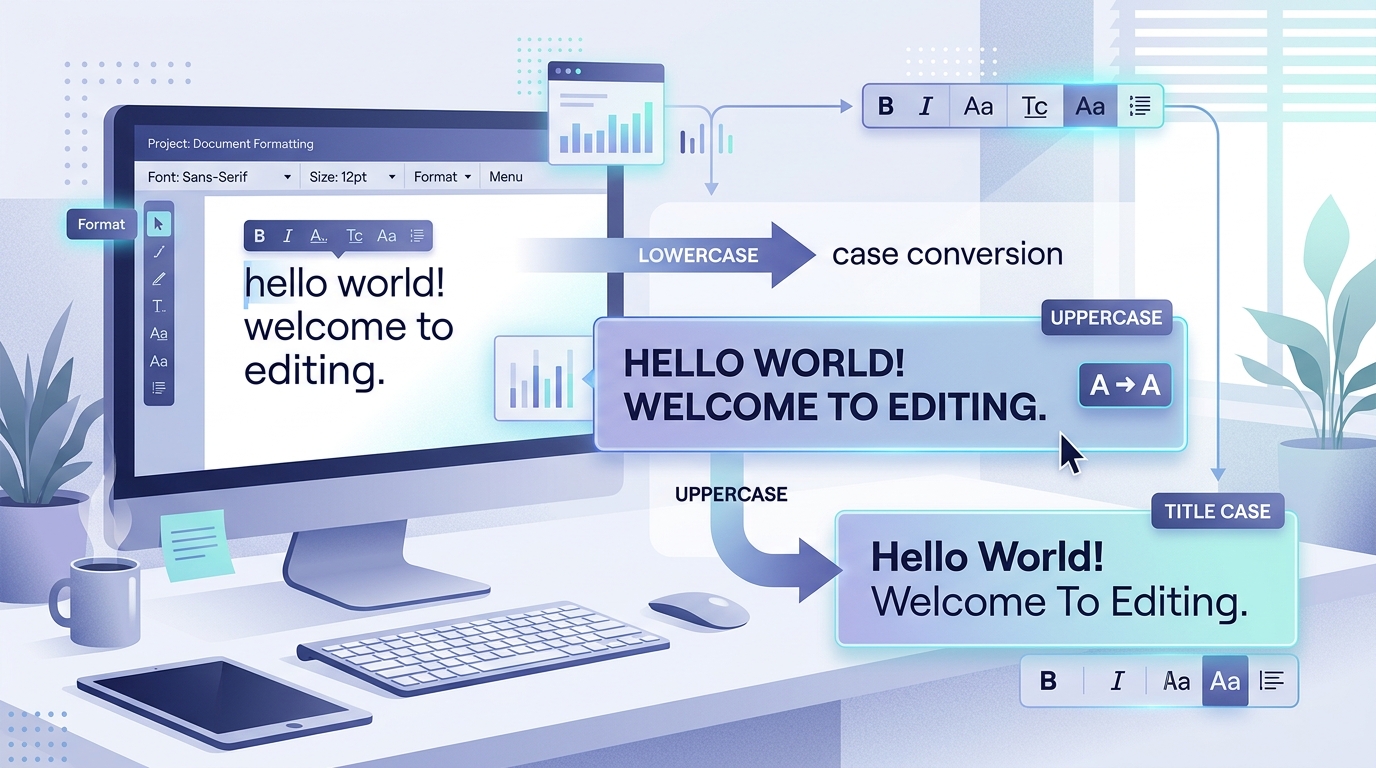
Whether you are drafting an executive email, preparing an academic paper, formatting blog headings, curating social media posts, or cleaning messy data copied from a PDF, text capitalization directly determines how your words are perceived. An accidental slip of the Caps Lock key can make a routine message look like aggressive shouting, while inconsistent headline capitalization weakens professional credibility. Instead of spending frustrating minutes manually retyping sentences character by character, an online text case converter allows you to change text to uppercase, lowercase, title case, and sentence case in a single click.
Why Text Capitalization Matters
Capitalization is one of the most fundamental conventions of written language. Beyond mere aesthetics, the case of your letters provides subtle visual cues that guide the reader’s eye, establish document hierarchy, emphasize key ideas, and indicate grammatical boundaries.
Here is why having effortless control over your text case is so valuable:
- Instant Visual Hierarchy: Distinct capitalization styles differentiate main titles, section subheadings, figure captions, and body paragraphs, allowing readers to scan and digest complex documents effortlessly.
- Professionalism Across Channels: A polished resume, corporate memo, or freelance proposal requires consistent capitalization. Disorganized casing signals carelessness to hiring managers and clients.
- Rapid Data Cleaning & Formatting: Spreadsheets, legacy databases, and scraped text frequently output customer names, addresses, or product SKUs in erratic casing (such as all-caps or all-lowercase). Automated case conversion restores clean, uniform data instantly.
- Eliminating Repetitive Typing Fatigue: Having to manually re-enter 500 words because you accidentally left Caps Lock engaged is a tedious waste of valuable time. Case converters rescue your content without losing a single keystroke.
- Streamlining Multi-Platform Publishing: Content creators regularly adapt copy across diverse platforms—such as changing an all-caps YouTube thumbnail title into readable sentence-case descriptions for newsletters or blog articles.
Try FreeToolKit Text Case Converter
Instantly convert text to UPPERCASE, lowercase, Title Case, and Sentence case. Zero sign-up, live character statistics, and 100% private.
What Is a Text Case Converter?
A text case converter is an automated software utility designed to change the capitalization format of letters within any block of text. By parsing characters, word boundaries, and punctuation marks, the tool transforms text from one typographical format to another without modifying the underlying vocabulary or phrasing.
Instead of manually navigating through a document with backspaces and Shift keys, you simply paste your text into the converter, select your target capitalization style, and receive an instantly formatted output ready for copying.
Who Uses a Text Case Converter?
- Writers and Bloggers: To format article titles, subheads, and metadata according to strict editorial guidelines.
- Students and Researchers: To normalize bibliography entries, book titles, and notes copied from diverse academic databases.
- Marketers and Social Media Managers: To craft attention-grabbing campaign headlines, video titles, and engaging captions.
- Software Developers: To normalize database seeds, prepare UI labels, clean user inputs, and format constant names.
- Administrative Professionals: To clean up legacy reports, customer rosters, and invoice entries exported from older enterprise software.
Different Types of Text Case Explained
Understanding the four major capitalization styles helps you choose the right format for your specific context. Here is how each case behaves, accompanied by clear examples:
In uppercase formatting, every single alphabetical character is converted into its capital equivalent.
Best Used For: Acronyms (e.g., NASA, UNESCO), airport codes (JFK, LHR), warning labels (“CAUTION”), short interface badges, and legal disclaimers. Avoid using uppercase for long paragraphs, as readers perceive it as shouting and find extended blocks difficult to scan.
In lowercase formatting, every letter in the text is converted into small letters, stripping all capitalizations.
Best Used For: Cleaning up text typed with accidental Caps Lock, formatting email addresses, web URLs, code variables, search keywords, and preparing data for case-insensitive indexing.
In title case, the first character of each word is capitalized while the subsequent letters are converted to lowercase.
Editorial Note on Style Variations: Traditional manual style guides (such as The Chicago Manual of Style, APA, or MLA) stipulate that short articles (a, an, the), coordinating conjunctions (and, but, for), and short prepositions (in, on, at, to) remain lowercase unless they appear as the first or last word of the title. Algorithmic online converters typically apply uniform capitalization across every word boundary. If your publication requires strict APA or Chicago rules, simply convert to Title Case first, then quickly adjust short connecting words.
Sentence case capitalizes only the very first letter of each sentence (immediately following sentence-ending punctuation such as periods, exclamation points, and question marks), keeping all subsequent letters lowercase.
Best Used For: Body paragraphs, long articles, modern website navigation menus, button labels, and modern Scandinavian/UK corporate heading styles. Because sentence case algorithms treat every letter after the sentence boundary as lowercase, remember to quickly capitalize proper nouns (names, cities, brands) after converting.
How to Change Text Case Online With FreeToolKit
FreeToolKit provides a fast, lightweight, and completely private Text Case Converter that executes right inside your browser. Follow these five simple steps to format your text:
- 1. Open the Tool: Navigate to the FreeToolKit Text Case Converter page.
- 2. Paste or Type Your Text: Enter your text into the “Your text” input field. As you type, live counters automatically display your word, character, and sentence counts.
- 3. Select Your Target Case: Click on one of the four conversion buttons:
- UPPERCASE: Converts every letter into a capital letter.
- lowercase: Converts all characters into small letters.
- Title Case: Capitalizes the starting letter of every word.
- Sentence case: Capitalizes the initial letter of each sentence.
- 4. Review the Converted Output: The text field updates instantaneously, allowing you to inspect the results and review your updated reading time and text stats.
- 5. Copy Your Text: Click the “Copy text” button to copy the formatted text directly to your clipboard. A green checkmark confirms it is ready to paste anywhere! If you want to start over, simply click “Clear”.
Unlike traditional online tools that transmit your sensitive writing to external servers, FreeToolKit processes every transformation locally on your device using native JavaScript. Your personal notes, essays, passwords, and private company data never leave your web browser.
Practical Examples of Text Case Conversion
To demonstrate how each case transformation modifies punctuation and word structure, examine the table below comparing all four modes using the same sample passage:
| Conversion Mode | Original Text | Converted Result | Typical Application |
|---|---|---|---|
| UPPERCASE | the quick brown fox jumps over the lazy dog. it was a sunny morning. | THE QUICK BROWN FOX JUMPS OVER THE LAZY DOG. IT WAS A SUNNY MORNING. | Headlines, acronyms, badges |
| lowercase | THE QUICK BROWN FOX JUMPS OVER THE LAZY DOG. IT WAS A SUNNY MORNING. | the quick brown fox jumps over the lazy dog. it was a sunny morning. | URLs, emails, search tags, code |
| Title Case | the quick brown fox jumps over the lazy dog. it was a sunny morning. | The Quick Brown Fox Jumps Over The Lazy Dog. It Was A Sunny Morning. | Article titles, book headings |
| Sentence case | THE QUICK BROWN FOX JUMPS OVER THE LAZY DOG. IT WAS A SUNNY MORNING. | The quick brown fox jumps over the lazy dog. It was a sunny morning. | Body copy, paragraphs, memos |
When Should You Use Each Text Case?
Selecting the proper case convention depends on your audience, publication format, and prescribed style guide. Here is an overview of when each casing style shines:
- Acronyms & Abbreviations: For entities like NASA, NATO, HTML, and FBI.
- Critical Alerts & Safety Warnings: Emergency notifications such as “DANGER: HIGH VOLTAGE”.
- Database & Environment Constants: Coding conventions like
MAX_UPLOAD_SIZE. - Graphic Badges: Compact UI elements like “NEW”, “SALE”, or “BETA”.
- Domain Names & URLs: Web addresses like
https://allinonetoolbox.store. - Email Addresses: Ensuring clean, standardized contact lists.
- Programming Syntax: Language keywords, CSS class names, and command-line arguments.
- Hashtags & Tags: Streamlining taxonomy labels across digital marketing feeds.
- Book, Movie, & Song Titles: E.g., “The Great Gatsby” or “A Tale of Two Cities”.
- Newspaper & Magazine Headlines: Common in American journalistic traditions.
- Formal Reports & Whitepaper Headings: Lending an authoritative, editorial structure to documents.
- Presentation Slide Headers: Creating prominent visual cues for audiences.
- Main Body Paragraphs: The standard format for all continuous prose, essays, and emails.
- Modern UI Buttons & Labels: UX standards (Apple and Google design guidelines) heavily favor sentence case.
- Blog & Web Headings: European and digital publishing styles favor sentence case for improved conversational readability.
- Bullet Point Lists: Clear, readable descriptions in documentation.
Common Text Capitalization Mistakes
Even experienced writers occasionally fall into common capitalization traps. Recognizing these errors ensures your finished writing remains crisp and professional:
Glancing up from your keyboard only to realize you typed an entire paragraph with Caps Lock enabled is frustrating. Never delete and retype it manually—simply copy the block into our Text Case Converter and click “Sentence case” to restore it in seconds.
Typing entire paragraphs in uppercase under the assumption that it adds emphasis actually has the opposite effect. Readers find all-caps text abrasive, exhausting to read, and prone to being ignored. Reserve uppercase strictly for short labels and acronyms.
Mixing Title Case on some headings and Sentence case on others within the same manuscript looks disorganized. Pick one style guide at the outset and stick with it throughout the document.
When converting an all-uppercase passage into sentence case, words like “NASA” or “SEO” will naturally be lowered to “Nasa” or “Seo”. Always do a quick pass after converting to ensure acronyms remain fully capitalized.
No algorithmic tool understands every brand name or language quirk (e.g., “iPhone”, “McDonald’s”, or “van Gogh”). Automatic converters give you a 95% head start, but a 10-second proofread guarantees perfection.
Tips for Getting Better Results
To make text formatting fast, accurate, and seamless across your projects, keep these actionable tips in mind:
- Check Proper Nouns and Brands: Distinct brand stylings (such as eBay, macOS, FedEx, and PlayStation) follow proprietary capitalization rules that require a quick manual check after conversion.
- Clean Up Extra Spaces First: If your text was copied from a PDF or scanned document, it might contain uneven gaps or broken line breaks. Run it through our free Remove Extra Spaces utility before changing case.
- Verify Word and Character Limits: If you are drafting headlines for social ads or essays with strict length rules, monitor the live stats provided below the converter or verify with our Word Counter and Character Counter.
- Retain an Original Copy: If you are working on a massive manuscript, keep a draft of your original text saved in your clipboard or text editor before applying destructive batch transformations.
- Inspect Sentence Boundaries: Sentence-case algorithms look for terminal punctuation followed by whitespace. If your text uses abbreviations with periods (such as “e.g.” or “Dr.”), verify that the subsequent word was not inadvertently capitalized as a new sentence.
Text Case Converter vs. Manual Editing
Both automated case conversion and manual editing have their place in an author’s toolkit. Here is a balanced look at how they compare:
| Evaluation Criteria | Online Text Case Converter | Manual Retyping & Editing |
|---|---|---|
| Processing Speed | Instantaneous (Under 1 second) | Slow (Minutes to hours for long texts) |
| Handling Bulk Content | Handles thousands of words in one click | Exhausting and prone to fatigue errors |
| Keystroke Accuracy | 100% preserves spelling and words | Risk of accidental typos while retyping |
| Irregular Brand Stylings | Applies uniform algorithmic rules | Superior for nuanced context (e.g., iPhone) |
| Best Recommended Approach | Hybrid Workflow: Use the online converter to execute the bulk 98% transformation instantly, followed by a quick 10-second proofread for proper nouns. | |
More Free Text & Productivity Tools
FreeToolKit provides a comprehensive suite of in-browser text formatting utilities to make writing and data cleanup effortless:
Start Converting Text With FreeToolKit
Text capitalization is a small detail that carries enormous weight in written communication. Whether you are correcting an accidental Caps Lock mistake, standardizing subheadings for a research paper, formatting social media announcements, or cleaning customer rosters, you should never have to retype content manually.
With FreeToolKit’s free, client-side Text Case Converter, you can switch between uppercase, lowercase, title case, and sentence case in milliseconds—complete with live text statistics and total data privacy.
Ready to transform your text? Paste your writing into the tool and get instant results.