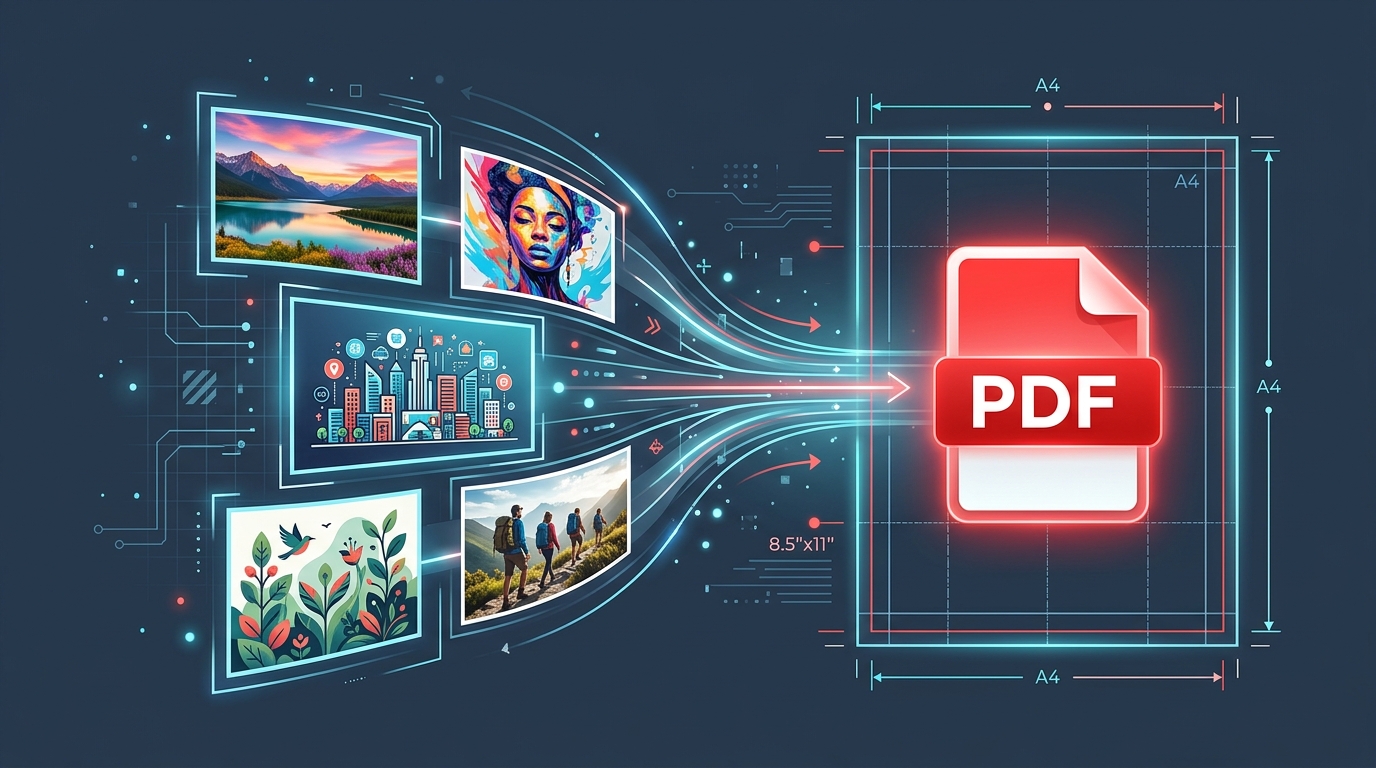
Whether you need to submit scanned passport receipts for corporate expense reimbursement, compile assignment photos into a unified homework submission, deliver graphic design mockups to a client, or prepare high-resolution photograph prints for an office binder, digital images alone are rarely the ideal delivery format. Standalone JPG, PNG, and WebP image files open in inconsistent viewer windows, lack standard paper margins, and cannot be navigated sequentially as a multi-page document. Converting your images into a standardized PDF document solves each of these challenges instantly.
A PDF (Portable Document Format) packages individual image files into a single, universally compatible digital container that preserves your exact page order, physical paper dimensions, and aspect ratios across every operating system, smartphone, and desktop printer. When you send a PDF, you guarantee that the recipient sees your document exactly as intended — without scrambled attachments or missing files.
Use the All in One Toolbox Image to PDF Converter to combine JPG, PNG, and WebP images into a downloadable PDF directly in your browser. With full control over page sizes (A4, US Letter, US Legal, or Fit to Image), page orientation (Portrait, Landscape, or Automatic), margin padding, and image fit modes, creating professional documents takes only seconds with complete client-side privacy.
Why Browser-Side PDF Generation Matters
Unlike legacy cloud document converters that require you to upload private family photos, tax receipts, medical scans, or proprietary contracts to third-party servers, All in One Toolbox compiles your PDF 100% locally in your browser memory using WebAssembly and HTML5 Canvas decoders. Your files are never uploaded, stored, or indexed anywhere.
1. What is an Image-to-PDF Converter?
An image-to-PDF converter is a specialized utility that reads raster image files — such as JPG photographs, PNG graphics, or modern WebP assets — and encapsulates them as graphic objects inside a freshly generated PDF document stream. Rather than sending five separate email attachments or twenty loose photo files, an image-to-PDF tool binds them into a single, cohesive document where each image occupies its own dedicated page.
Maps unconstrained digital pixels directly into standard physical paper dimensions (A4 or Letter at 72 points per inch) with predictable print borders.
Guarantees that multi-page contracts, monthly receipts, or study notes display in your exact chosen chronological sequence without filename sorting mix-ups.
PDF is supported natively across Windows, macOS, iOS, Android, Linux, and web browsers without requiring specific graphics software or photo viewer apps.
2. How to Convert Images to PDF Online: Step-by-Step Guide
All in One Toolbox makes turning any collection of photos or graphics into a polished PDF incredibly straightforward. Here is the exact step-by-step workflow:
Navigate to the Free Image to PDF Converter. Drag and drop your JPG, PNG, or WebP files directly into the dashed upload area, or click Choose Images to browse files from your computer or phone (supports batches up to 50 images and 20 MB per file).
Inspect the visual thumbnail cards displaying filename, file size, format, pixel dimensions, and page index numbers. Use the accessible Move Up and Move Down buttons on each card to arrange your pages into the exact order you want them to appear in the PDF.
Choose your target page size (A4, US Letter, US Legal, or Fit to Image), orientation (Automatic, Portrait, or Landscape), and margin padding (No Margins, Small Margins 18pt, or Normal Margins 36pt). Select your preferred image fit mode (Fit to Page or Fill Page).
If uploading transparent PNG or WebP images, pick a page background color (White, Black, or custom Hex) so transparent areas render cleanly. Choose an image quality preset: Balanced (recommended 85% JPEG compression), High Quality (95% compression for fine detail), or Smaller File (65% compression to conserve bandwidth).
Click Convert to PDF. The tool processes each image, scales and embeds the graphics, and compiles a valid PDF Blob in seconds. When finished, review the output file size and page count, then click Download PDF.
3. How to Convert JPG to PDF: Best Practices for Photos
JPG (or JPEG) is the most widely used image format in the world, utilized by virtually every digital camera, smartphone, and photo editor. Because JPEG images already employ lossy discrete cosine transform (DCT) compression, they embed cleanly and efficiently inside PDF documents.
When converting JPG files to PDF:
- Preserve Original Fidelity: If you select the High Quality preset, the converter embeds the original JPEG byte stream directly into the PDF without re-encoding, ensuring zero generational quality loss.
- Match Orientation Automatically: Smartphones often capture photos in varying orientations. Selecting Automatic orientation checks each photo's width-to-height ratio, setting vertical photos to Portrait pages and wide panoramas to Landscape pages automatically.
- Do Not Expect Quality Enhancement: Converting a low-resolution or blurry photo to PDF will not sharpen edges or fix pixelation. A PDF container preserves the exact bitmap resolution provided at upload.
4. How to Convert PNG to PDF: Graphics, Screenshots & Transparency
PNG (Portable Network Graphics) is the gold standard for screenshots, logos, charts, digital illustrations, and graphics requiring alpha channel transparency. Converting PNG to PDF requires special attention to how transparent background pixels are handled:
Handling PNG Alpha Transparency in PDFs
By default, a physical printed sheet or PDF reader window displays against a white backdrop. If your PNG has a transparent background (such as a company logo or dark-mode diagram with white text), viewing it on a standard white page could render white text invisible.
All in One Toolbox solves this by letting you choose a dedicated Page Background: select White for standard office documents, Black for dark-mode assets, or pick a custom Hex shade matching your brand aesthetic.
5. How to Convert WebP to PDF: Modern Web Images
WebP is Google's modern image format designed for high-efficiency web delivery. While WebP dominates web browsers, many native desktop PDF parsers and older print workflows do not natively recognize raw WebP byte streams inside a PDF object dictionary.
To solve this compatibility hurdle, All in One Toolbox employs client-side canvas transcoding:
- The browser loads and decodes the WebP bitmap into an uncompressed RGBA pixel buffer.
- The pixel matrix is re-encoded on the fly into standardized JPEG or PNG byte streams conforming to standard ISO PDF specifications (ISO 32000-1).
- The resulting PDF opens smoothly in Adobe Acrobat Reader, Apple Preview, Google Chrome, and commercial printing software without format errors.
6. How to Combine Multiple Images into One PDF
One of the biggest advantages of an image-to-PDF converter is document consolidation. Instead of juggling twenty individual image files, you can bind them into a single, cohesive file:
Business Expense Receipts
Combine multiple gasoline, hotel, meal, and airline receipt photos into a single chronological expense report PDF for accounting approval.
Student Homework & Notes
Snap photos of handwritten lecture notes, math problem sets, or textbook pages and combine them into a single submission for online grading portals.
Legal & Real Estate Scans
Turn smartphone camera scans of multi-page lease agreements, identity documents, and notarized forms into a formal multi-page PDF package.
Design Portfolios & Decks
Assemble client storyboards, UX wireframes, and promotional graphics into a paginated presentation deck that displays consistently on mobile and desktop.
Tip: Always verify the page numbers displayed on the thumbnail cards before clicking "Convert to PDF." The visual order in the tool matches the exact physical order of pages in the finished PDF.
7. Choosing the Right PDF Page Size
Standard digital PDF documents use physical paper dimensions calculated in PDF points (where 1 inch = 72 points). Selecting the right page size ensures that your PDF prints cleanly without unexpected scaling or clipping:
| Page Size | Dimensions (Inches) | PDF Points (72 DPI) | Best Used For |
|---|---|---|---|
| A4 | 8.27 × 11.69 in | 595.28 × 841.89 pt | International standard for office, academic, and business documents worldwide. |
| US Letter | 8.50 × 11.00 in | 612.00 × 792.00 pt | Standard format in the United States, Canada, Mexico, and Philippines. |
| US Legal | 8.50 × 14.00 in | 612.00 × 1008.00 pt | Contracts, real estate deeds, court filings, and accounting balance sheets. |
| Fit to Image | Custom per image | Exact image aspect ratio | Digital-only viewing, art portfolios, posters, and screenshots where paper margins are unwanted. |
8. Portrait vs. Landscape: How Orientation Works
Orientation defines whether each page is taller than it is wide (Portrait) or wider than it is tall (Landscape). Choosing the right orientation prevents large empty bands around your images:
Standard vertical layout. Best for document scans, book pages, receipts, smartphone portraits, and formal letters.
Horizontal layout. Best for desktop screenshots, widescreen presentation slides, panoramic landscape photography, and wide tables.
The converter inspects each image individually: wide images get Landscape pages, and tall images get Portrait pages. Mixed batches fit perfectly!
9. How Margins and Image Fit Modes Affect the Final PDF
How an image sits inside a fixed physical page depends on two interacting settings: Margins and Fit Mode.
Margin Padding Options
Fit Mode Options
10. How to Make a Smaller PDF: File Size Optimization Tips
Modern smartphone cameras capture images at 48 megapixels and 12 MB each. Combining ten of these photos into a PDF can easily produce a 120 MB document — exceeding typical 25 MB email attachment limits. Follow these strategies to keep your PDFs lightweight:
11. Is Converting an Image to PDF Safe? Privacy & Security Explained
Online privacy is a critical concern when handling sensitive files like identity cards, driver's licenses, bank statements, medical records, or proprietary corporate agreements.
All in One Toolbox's Client-Side Guarantee
Unlike traditional converters that require files to be uploaded across the internet to a cloud server, All in One Toolbox processes everything inside your local browser memory using JavaScript Canvas decoders and client-side PDF document compilers.
- Zero server uploads — images never leave your local computer or phone.
- No remote database storage, cloud caching, or permanent file logs.
- No tracking or sharing of image contents with third parties or AI training models.
- Temporary browser memory is cleared when you refresh or close the page.
12. Common Problems and Solutions
"Unsupported format or corrupted file"
Solution: Ensure your image is a genuine JPG, JPEG, PNG, or WebP file. If a file was renamed with an incorrect extension (e.g., a HEIC photo renamed to .jpg), convert it using the Image Format Converter first.
"Images look cropped along the edges"
Solution: Check your Image Fit Mode setting. If set to "Fill Page (Cover)", the tool crops the outer edges to fill the full sheet. Switch to "Fit to Page (Contain)" to keep 100% of the image visible.
"Generated PDF file size is too large"
Solution: Choose the "Smaller File" or "Balanced" quality preset. Alternatively, use the Image Compressor to downscale pixel dimensions before converting.
"Transparent PNG displays against black or white unexpectedly"
Solution: In the PDF Settings panel, select your preferred Page Background color (White, Black, or Custom Hex) to guarantee the background matches your artwork.
13. Frequently Asked Questions
Quick answers to common questions about converting photos and images into PDF documents:
How do I convert an image to PDF for free?
Open the All in One Toolbox Image to PDF Converter, drag and drop your JPG, PNG, or WebP files, choose your page settings, and click "Convert to PDF." Your finished PDF is ready to download in seconds with no account or fee required.
Can I convert multiple images into one PDF?
Yes. You can upload up to 50 images in a single batch, arrange their page order using the Move Up and Move Down buttons, and combine them into a single multi-page PDF document.
Can I convert PNG to PDF without losing transparency?
Yes. The tool renders transparent PNG regions cleanly over your chosen page background (white, black, or custom color), preserving smooth anti-aliased alpha blending.
Can I convert WebP images to PDF?
Yes. All in One Toolbox decodes WebP images in your browser canvas and transcodes them into standardized PDF-compatible formats before embedding, ensuring broad compatibility.
Can I change the PDF page size?
Yes. You can choose from standard A4, US Letter, US Legal, or Fit to Image (which creates pages that match each image's native aspect ratio).
Can I reorder images before creating the PDF?
Yes. Each uploaded image card features Move Up and Move Down controls so you can sequence your pages in the exact order you want before converting.
Does converting an image to PDF make its text editable?
No. Converting an image to PDF embeds the picture on a page canvas. Extracting or searching text requires an Optical Character Recognition (OCR) tool.
Are my images uploaded to a server?
Never. All processing is 100% client-side in your local web browser session. Your images never leave your computer or mobile device.
Ready to Turn Your Images into Clean PDF Documents?
Whether you need to package a single receipt or combine fifty high-resolution photographs into an organized portfolio, All in One Toolbox delivers lightning-fast, completely private, browser-based conversions.