
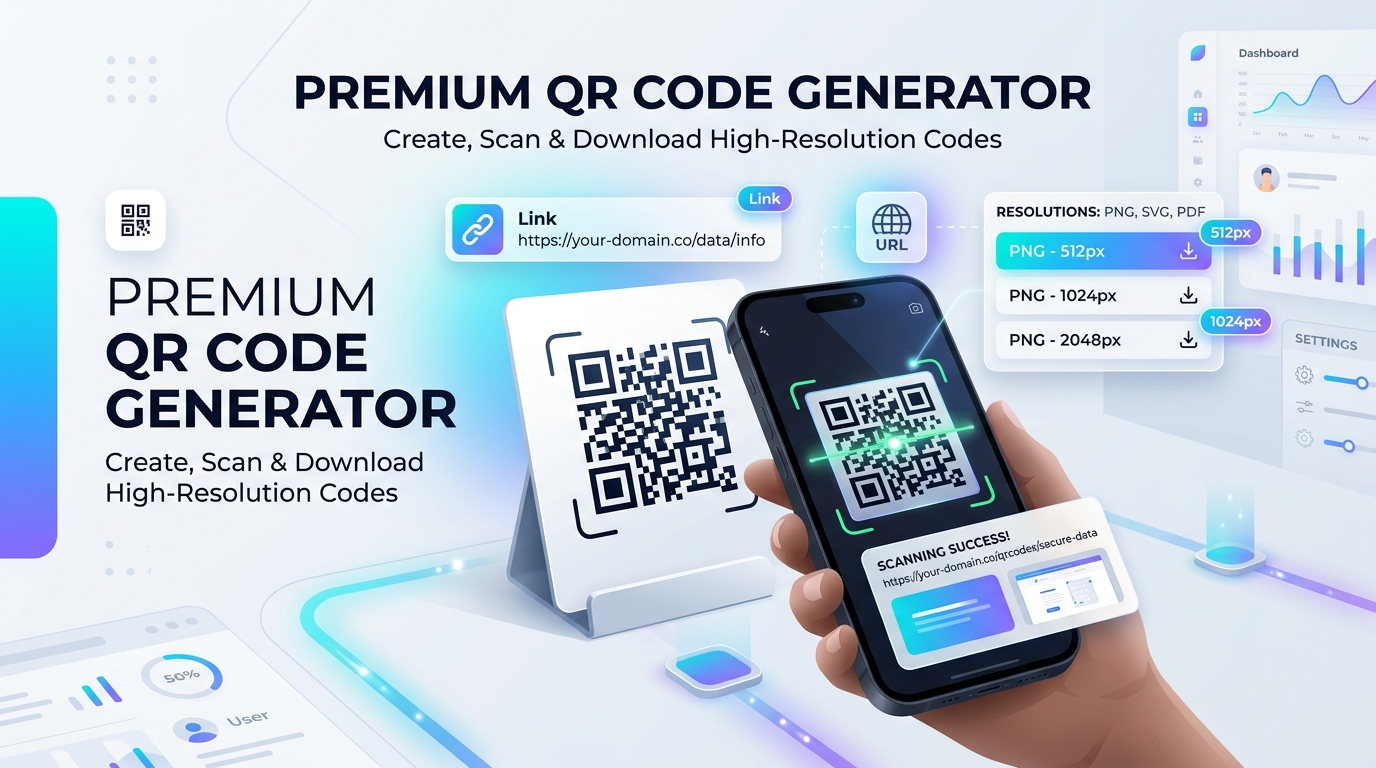
In today’s hybrid digital and physical landscape, Quick Response (QR) codes have become the universal bridge connecting printed surfaces to interactive online experiences. Whether you are a restaurant owner replacing sticky paper menus with an instant touchless menu, a small business owner adding a website link to your storefront window, a teacher sharing classroom assignments, or an event organizer directing guests to schedule details, a scannable barcode eliminates tedious manual URL typing. Using an online QR code generator allows anyone to generate custom, high-resolution QR codes in seconds—completely free and without installing specialized software.
Try All in One Toolbox QR Code Generator
Create custom QR codes with adjustable resolutions (up to 1024px), classic or rounded styles, color presets, and transparent backgrounds. 100% private and generated locally.
What Is a QR Code?
A QR code (short for Quick Response code) is a two-dimensional matrix barcode first invented in 1994 by the Japanese automotive engineering company Denso Wave. Originally created to track vehicular parts through assembly lines with rapid optical scanning, QR codes have evolved into a ubiquitous global standard for sharing digital information.
To understand why QR codes are so powerful, it helps to compare them with traditional one-dimensional (1D) barcodes:
- Traditional 1D Barcodes (Linear): The vertical black stripes found on retail product packaging (such as UPC and EAN codes) store data only horizontally along a single dimension. They typically hold between 12 and 20 numeric digits—just enough to identify an inventory stock item in a database.
- 2D QR Codes (Matrix): QR codes store data across both horizontal and vertical axes using a square grid of dark modules against a contrasting background. Because data is recorded in two dimensions, a standard QR code can store over 7,000 numeric digits or nearly 3,000 alphanumeric characters, including complex website URLs, formatted text, and international characters.
Today, nearly every modern iOS and Android smartphone features native QR scanning built directly into the default camera app. Pointing a smartphone camera at a code instantly triggers an on-screen preview prompt, allowing users to jump directly to digital content without typing long web addresses. Common everyday applications include:
- Directing customers to website homepages, landing pages, or product catalogs.
- Hosting digital restaurant menus and contactless ordering systems.
- Distributing event tickets, conference schedules, and exhibition maps.
- Sharing contact cards (vCards) on personal business cards.
- Facilitating fast Wi-Fi network onboarding for office guests or café patrons.
- Printing interactive promotional links on flyers, brochures, posters, and banners.
How Does a QR Code Generator Work?
Creating a QR code is a mathematical process of translating human-readable text into an optically scannable binary grid. When you use an online generator, the process follows four distinct phases:
- Data Input: You supply the raw payload—such as a complete web URL (e.g.,
https://www.allinonetoolbox.store) or plain text instructions. - Encoding & Reed-Solomon Error Correction: The generator converts your characters into binary numbers (zeros and ones) and groups them into square pixel blocks known as “modules”. It also calculates mathematical error-correction blocks (using the Reed-Solomon algorithm), which allows the code to remain readable even if up to 30% of the graphic is scratched, smudged, or partially obscured.
- Pattern Formatting & Finder Eyes: The software positions three distinct large square markers in the top-left, top-right, and bottom-left corners. These are the “position detection eyes” that allow camera sensors to orient and read the code from any scanning angle (even upside down).
- Decoding & Operating System Action: When a user points a phone at the code, the camera app isolates the finder eyes, decodes the module grid, extracts the underlying text or URL, and displays a clickable preview banner for the user to confirm.
A QR code is simply an optical data carrier—it is the visual equivalent of printed text. Generating a QR code does not automatically verify whether a destination website is safe, legitimate, or trustworthy. Responsible website owners always test their URLs before sharing, and vigilant users should always glance at the camera app’s preview prompt before opening unfamiliar links.
How to Create a QR Code Online With All in One Toolbox
All in One Toolbox provides an instantaneous, browser-based QR Code Generator that runs completely client-side. There are no account sign-ups, no monthly fees, and no watermarks. Follow these straightforward steps to generate and download your code:
- Open the Tool: Navigate to the All in One Toolbox QR Code Generator in your browser.
- Enter Your Link or Text: Type or paste your destination URL into the “Link or text” box. For web links, make sure to include the full protocol prefix (e.g.,
https://) so scanning phones recognize it immediately as a web link. - Select Your Image Resolution: Choose from four preset canvas output sizes:
- Small (256 px): Great for avatars, compact digital badges, and small screen previews.
- Medium (320 px): Ideal for website sidebars, email footers, and social media banners.
- Large (512 px): The sweet spot for brochures, business cards, table tents, and flyers.
- Extra large (1024 px): High-resolution output suitable for large-format printing, event posters, and storefront signage.
- Choose Your Dot Style: Customize the visual aesthetic by selecting Classic (traditional crisp square modules), Rounded (modern softened pill-shaped modules), or Dots (contemporary circular stippled modules).
- Customize Colors: Choose from pre-designed high-contrast color swatches (such as deep indigo on light blue, forest green, warm amber, or classic black on white). You can also manually pick custom Foreground and Background colors, enable Gradient colors, or check Transparent background for seamless placement onto branded designs.
- Generate Your Code: Click the Generate QR code button. The canvas renders your customized graphic in milliseconds.
- Scan-Test Before Downloading: Pull out your smartphone, open your camera, and scan the on-screen preview. Confirm that the phone opens the exact intended URL.
- Download Your PNG: Click Download PNG to save the clean, high-resolution PNG image directly to your computer or phone.
- Perform a Physical Print Test: Always print a single test copy on regular paper and scan it under normal ambient lighting before ordering expensive commercial print runs.
Ready to create a custom QR code?
Generate crisp, high-resolution PNG QR codes with custom styling in seconds.
Different Types of QR Code Content
While the physical barcode pattern remains based on ISO standard specifications, QR codes can encode different types of payloads depending on what prefix and data formatting you supply. Here is an overview of the most common applications:
1. Website and URL QR Codes
URL codes are by far the most popular and versatile QR code type in the world. When you input a web address starting with https://, scanning devices automatically recognize the string as a web hyperlink and prompt the user to open it in Safari, Chrome, or their default browser.
Best Practice: Keep your destination URLs as concise as possible. Shorter URLs produce simpler, less dense QR patterns with larger modules, making them significantly faster and easier to scan from greater distances. If you need to include tracking query parameters (like UTM campaign tags), you can inspect and encode them using our free URL Encoder & Decoder.
2. Plain Text QR Codes
If you enter standard alphanumeric sentences without a web protocol prefix, scanning devices will simply display the encoded text directly on the user’s screen. This is useful for displaying wifi passwords, warehouse inventory numbers, serial tracking tags, in-store scavenger hunt clues, or short quotes.
3. Contact Information (vCard & MECARD)
Standardized formatting protocols (such as vCard or MECARD) allow contact information—such as full name, phone number, email address, job title, and company—to be encoded into a single code. When scanned, smartphones prompt the user to “Add to Contacts” with all fields pre-populated. Because vCard blocks contain substantial text volume, they generate denser QR grids that require slightly larger print sizes.
4. Wi-Fi Network Connection Codes
By formatting a text string with the Wi-Fi protocol string (e.g., WIFI:S:MyNetwork;T:WPA;P:MyPassword;;), compatible phones can prompt users to “Join Network” with one tap, bypassing the need to type complex passwords.
Privacy Consideration: Remember that any QR code containing your Wi-Fi credentials stores the password in plain text inside the pattern. Anyone who scans or photographs the code can view your network password. Never display Wi-Fi QR codes in unsecured, public areas if you want to keep your network private.
5. Action Triggers: Email (mailto:) and Phone (tel:)
Using standard URI schemes like tel:+1234567890 or mailto:support@example.com?subject=Inquiry instructs the mobile operating system to launch the phone dialer or pre-fill a draft email when scanned.
Practical Uses of QR Codes in Everyday Life
QR codes are versatile tools that simplify real-world interactions when implemented with clear purpose and proper context:
Place QR codes on receipts, store windows, or checkout counters directing customers to Google review pages, loyalty club sign-ups, or social media profiles.
Place durable acrylic table stands with QR codes linking to daily food menus, craft beer lists, allergy information, or mobile payment portals.
Print QR codes on invitations, badges, and venue signs linking attendees to live agenda schedules, speaker presentations, venue Wi-Fi, or photo-sharing albums.
Teachers can print QR codes on syllabus handouts or classroom posters linking students to online quizzes, reading assignments, lecture slides, or library resources.
Replace bulky multi-language paper user manuals with a compact QR code on product boxes linking customers to video setup tutorials and PDF guides.
Label storage totes or moving boxes with text QR codes listing the exact contents inside—allowing you to inspect box inventory without opening sealed tape.
Static QR Codes vs. Dynamic QR Codes
One of the most important concepts to understand before printing QR codes is the fundamental difference between static and dynamic implementations:
| Feature / Characteristic | Static QR Codes (All in One Toolbox) | Dynamic QR Codes (Subscription Services) |
|---|---|---|
| How Data Is Encoded | Your actual URL or text is baked directly into the black-and-white pixel modules. | Encodes an intermediary short URL hosted on a third-party server that redirects to your final destination. |
| Can You Change the Destination? | No. Once generated and printed, the pattern points permanently to that exact string. | Yes. You can log into the third-party dashboard and modify the forwarding address anytime. |
| Do They Ever Expire? | Never. As long as your destination website exists, the code will scan forever with zero maintenance. | Risk of Expiration. If you cancel your paid subscription or the provider shuts down, the redirect breaks. |
| Cost & Account Requirements | 100% free, no account, no credit card, no recurring costs. | Usually requires monthly or annual subscription fees to keep redirects active. |
| Scan Analytics & Tracking | No third-party tracking; you track visits directly via your website analytics (e.g., Google Analytics UTM tags). | Built-in dashboard tracking scan counts, operating systems, and timestamps. |
All in One Toolbox generates 100% static, independent QR codes. Because your URL is encoded directly into the image canvas, your codes belong to you permanently. You never have to worry about unexpected paywalls, expired redirects, or third-party downtime breaking your printed materials.
Tips for Making a QR Code Easy to Scan
Nothing is more frustrating to a customer than an unreadable QR code. Follow these proven design and printing guidelines to ensure flawless scanability every time:
1. Follow the 10:1 Distance-to-Size Ratio
A general rule of thumb for physical printing is a 10 to 1 ratio: the scanning distance should be roughly ten times the width of the QR code. For example:
- Business card (scanned from 10 inches / 25 cm): Minimum 1 × 1 inch (2.5 × 2.5 cm).
- Table tent or brochure (scanned from 20 inches / 50 cm): Minimum 2 × 2 inches (5 × 5 cm).
- Wall poster or window sign (scanned from 5 feet / 1.5 m): Minimum 6 × 6 inches (15 × 15 cm).
2. Maintain Maximum Color Contrast
Camera sensors rely on high luminance contrast to recognize modules. Always ensure your foreground modules are significantly darker than the background (e.g., dark navy on white, deep green on cream, or classic black on white). Avoid low-contrast pairings like yellow on white, light gray on silver, or dark blue on black.
3. Preserve the “Quiet Zone” (Margin)
A QR code requires a clear, unobstructed border surrounding all four sides—known as the quiet zone. This blank border should be at least four modules wide. Never crop directly to the edges of the position detection eyes, and avoid placing text, logos, or decorative borders directly touching the outer pattern.
4. Use High Resolution for Print
When printing, avoid low-resolution raster graphics that appear pixelated or blurry. Select All in One Toolbox’s Large (512 px) or Extra large (1024 px) output size to guarantee crisp 300 DPI print clarity.
5. Avoid Curved or Highly Reflective Surfaces
Placing a QR code on a tight cylindrical bottle, around the curve of a mug, or behind glossy glare-heavy glass can distort the matrix and make camera focusing difficult. If possible, place codes on flat, matte finishes with good ambient illumination.
Common QR Code Mistakes to Avoid
Avoid these frequent missteps to save time, printing costs, and customer frustration:
1. Printing Without Test-Scanning First
Never send thousands of flyers or expensive signage to print without scanning a physical proof with at least two different smartphones (ideally both an iPhone and an Android device).
2. Linking to an Untested, Non-Mobile Website
Nearly 100% of QR code scans originate from mobile phones. If your destination page is not mobile-friendly, takes ten seconds to load, or requires horizontal scrolling, users will bounce immediately.
3. Distorting the Aspect Ratio
QR codes must remain perfectly square (1:1 aspect ratio). When placing your exported PNG into Canva, Photoshop, or InDesign, lock the proportions to avoid stretching the code horizontally or vertically.
4. Forgetting a Clear Call to Action (CTA)
A standalone QR code with no accompanying text leaves people wondering what will happen. Always pair your graphic with a simple instruction: “Scan for Today’s Lunch Menu”, “Scan to RSVP”, or “Scan to Download the App”.
5. Placing Codes Where Cellular Service Is Unavailable
Placing a URL QR code inside an underground subway station, deep in a basement parking garage, or on an airplane tray table without Wi-Fi will lead to failed connection errors.
QR Code Safety and Privacy: Best Practices for Users and Businesses
As QR code usage has expanded globally, cybersecurity awareness has become increasingly essential. Keep these security principles in mind:
- Inspect the Preview URL: When your camera app scans a code, it displays a URL preview banner before opening. Confirm the domain name matches the expected brand before tapping.
- Beware of Physical Tampering (“Quishing”): On public parking meters, outdoor banners, or restaurant tables, check whether a rogue sticker has been pasted over the legitimate original code.
- Never Enter Passwords Unprompted: If a scanned QR code leads to a login page asking for your banking password or email credentials, treat it with caution and verify the SSL certificate and domain.
- Use Secure HTTPS Links: Always encode full
https://links with valid SSL certificates to reassure scanning visitors. - Keep Your Domain Consistent: Direct users to your primary company domain rather than obscure link shorteners that may trigger browser security warnings.
- Protect Wi-Fi Credentials: Only print Wi-Fi QR codes in controlled environments where you intend to grant network access. Use our free Password Generator to create robust, separate guest Wi-Fi passwords.
How to Choose the Right QR Code for Your Project
Selecting the ideal configuration depends on your specific goals and distribution channel:
- For Websites, Menus & Portfolios: Use All in One Toolbox’s QR Code Generator with your full canonical URL. Select Medium (320px) for web use or Large (512px) for print. Pair it with a classic or rounded dot style in your brand’s signature colors.
- For Event Signage & Posters: Select the Extra large (1024px) resolution to ensure crisp printing on large banners viewed from several feet away.
- For Transparent Graphic Overlays: Check the “Transparent background” toggle to export a clean PNG with an alpha channel, allowing you to drop the code onto colorful brochure backgrounds without an awkward white square box.
- For Permanent Marketing Materials: Rely on static codes that never expire, ensuring your business cards and product packaging remain functional for years.
100% Client-Side Privacy: Generated in Your Browser
Many online QR code generators require you to register an account, transmit your URLs to remote logging servers, or wrap your links in third-party tracking redirects that can expire without notice. All in One Toolbox does not work that way.
Client-Side Architecture Guarantee
Zero Server Storage · Zero Redirect Tracking · 100% Private
Every QR code generated on All in One Toolbox is calculated exclusively inside your browser’s local JavaScript canvas engine. Your URLs, text notes, and design choices never leave your computer or phone. You can even disconnect your internet after loading the page and generate unlimited QR codes completely offline.
Create Your Custom QR Code With All in One Toolbox
Generate high-resolution, scannable QR codes for your website, menu, or business in seconds. Completely private, fully customizable, and ready to download.