
Over 80% of videos across social media platforms like Instagram Reels, TikTok, YouTube Shorts, LinkedIn, and Facebook are viewed with sound completely muted. In noisy public transit, quiet office workspaces, or late-night scrolling, viewers rarely turn on audio unless an immediate visual hook captures their attention. Adding accurate, well-styled subtitles is no longer a luxury for specialized media — it is the single most effective way to ensure your message is seen, understood, and remembered.
Beyond silent viewership, synchronized captions are essential for digital accessibility. They allow millions of deaf and hard-of-hearing individuals to enjoy video content equally, improve comprehension for non-native language learners, clarify fast or accented speech, and reinforce educational retention during technical tutorials, academic lectures, and corporate interviews.
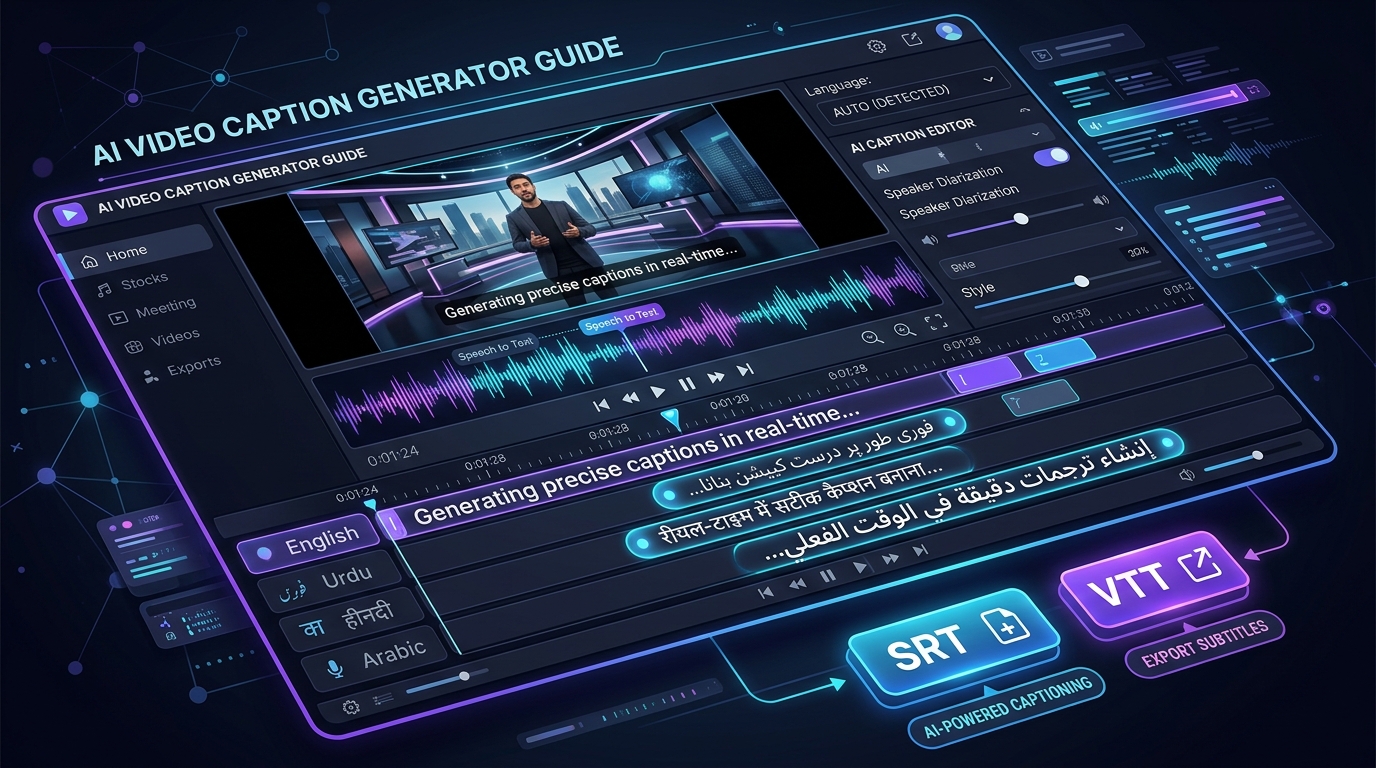
Use the All in One Toolbox AI Video Caption Generator to create captions, edit subtitle timing, customize appearance with viral social templates, and download clean subtitle files (.SRT, .VTT) or export high-definition video with permanently burned-in subtitles directly in your browser.
Zero Server Uploads: Local AI in Your Web Browser
Traditional cloud captioning services require you to transmit private family footage, unreleased business briefs, or legal recordings across the internet to centralized servers, incurring monthly subscription fees and data privacy risks. All in One Toolbox executes state-of-the-art OpenAI Whisper neural transcription client-side in your browser memory using WebAssembly. Your video files never leave your computer or phone.
1. What Are Video Captions? (Open vs. Closed Subtitles)
Before generating timed text, understanding the distinction between subtitle delivery mechanisms ensures you choose the right format for your audience and distribution channels:
Open Captions (Burned-In)
Open captions are permanently rendered onto the video's pixel raster. Viewers cannot turn them off, and they appear identically regardless of what video player, smartphone app, or social platform is used.
Best for: Instagram Reels, TikTok, YouTube Shorts, product ads, and digital billboards.
Closed Captions (CC / Soft Subtitles)
Closed captions exist as an independent text data stream (.SRT or .VTT) separate from the video. Viewers can toggle them on or off, select different languages, or customize text size in their player settings.
Best for: Long-form YouTube videos, Netflix/Vimeo streaming, course lectures, and TV broadcasts.
Subtitles vs. Plain Transcripts
A plain transcript is simply un-timed text recording what was spoken. A subtitle file contains precise start and end millisecond timestamps for each speech segment (e.g., 00:01:23,500 --> 00:01:27,100). All in One Toolbox generates both timed subtitle files (.SRT, .VTT) and continuous clean text transcripts (.TXT) in a single click.
2. How to Add Captions to a Video Online: Step-by-Step Tutorial
Adding synchronized subtitles to any video using All in One Toolbox takes only four simple steps:
Open the All in One Toolbox AI Video Caption Generator. Drag and drop your MP4, WebM, or MOV video into the player. Use the trim sliders to isolate the exact dialogue section you need, crop the aspect ratio (e.g., 9:16 for mobile stories or 1:1 for feed posts), and adjust lighting or contrast if needed.
Choose your spoken language from the dropdown of 52 supported languages (or choose Auto-detect). Select your desired Whisper model accuracy (Tiny for fastest transcription, Base for balanced speed and accuracy, or Small for highest quality). If you want English subtitles for foreign speech, toggle "Translate speech into English."
Click Generate Captions. The local AI transcribes your audio and populates the interactive cue list. Click any cue to jump the video directly to that timestamp, correct specialized terms or names, adjust start/end timings, split long phrases, or use Find & Replace across the timeline.
Select a visual style preset (such as Reels Impact, Bold Pop, or Urdu Nastaliq) or customize font size, position, text color, and background boxes. Then download standalone .SRT or .VTT files, or click Burn Captions & Export Video to record and download a complete MP4 or WebM video ready for posting.
3. How Automatic Video Caption Generation Works
Client-side automatic speech recognition (ASR) involves sophisticated neural signal processing executing in real time inside modern web browsers:
4. How to Generate Subtitles in Urdu (اردو)
Urdu video content across Pakistan, India, and the global diaspora generates billions of views on social media. However, most Western subtitle tools struggle with Urdu because of its calligraphic Nastaliq script and Right-to-Left (RTL) text flow.
Urdu Captioning Best Practices in All in One Toolbox
- Authentic Noto Nastaliq Urdu Typography: Select the "Urdu Nastaliq" template or choose the "Nastaliq (Urdu)" font option. The tool renders ligatures and diagonal baseline cascading authentic to Urdu publishing.
- Automatic RTL Layout: Text alignment and punctuation marks automatically follow Urdu writing conventions from right to left.
- Verify Mixed English-Urdu Slang: Urban conversational Urdu often contains borrowed English tech or lifestyle words. Use the cue editor to verify proper phonetic transliteration.
5. How to Generate Hindi Subtitles (हिन्दी)
Hindi is the third most spoken language in the world. All in One Toolbox includes dedicated support for Hindi speech recognition and Devanagari script typography:
When generating Hindi captions, select Hindi (हिन्दी) from the language dropdown. For maximum accuracy on colloquial spoken Hindi (Hindustani) and conversational vlogs, choose the Small (Accurate) model setting.
The editor renders Devanagari conjunct consonants, viramas, and matras cleanly using Google Noto Sans Devanagari. Always check common loanwords (such as phone numbers, dates, or brand names) in the editor before final export.
6. How to Generate Arabic Subtitles (العربية)
Arabic covers Modern Standard Arabic (MSA) as well as diverse regional dialects (Gulf, Levantine, Egyptian, and Maghrebi). All in One Toolbox provides native Right-to-Left styling and two specialized Arabic fonts: Noto Naskh Arabic (clear, readable editorial book style) and Noto Kufi Arabic (bold, modern geometric style popular on Instagram and YouTube).
Check Arabic punctuation (question marks ؟ and commas ،) in the editor to ensure proper sentence cadences before downloading your final SRT or burning subtitles into your video.
7. Multilingual Support Across 52 Languages
All in One Toolbox supports 52 major world languages, giving your video global reach:
8. How to Translate Video Speech into English Captions
Want to share an interview in Urdu, a documentary clip in French, or a culinary reel in Italian with a global English-speaking audience? Whisper includes a built-in speech translation mode.
Simply select the video's original spoken language, check the box labeled "Translate speech to English", and click Generate. The neural network translates the spoken dialogue directly into synchronized English subtitle cues in a single step.
Pro Tip: Translation quality is highest when speakers talk at a measured pace with minimal ambient background music. Always review translated terms in the cue editor to verify cultural nuances.
9. How to Edit Captions and Fix Timestamp Timing
Automatic AI transcription gives you a 95%+ head start, but manual verification ensures professional polish. All in One Toolbox provides editing features designed for speed:
11. How to Download SRT and VTT Subtitle Files
If you plan to upload your video to YouTube, Vimeo, or a corporate video portal, providing an external subtitle file is superior to burned-in text because search engines can index the text to improve video search visibility.
SubRip (.SRT) Format
The universal standard for video players, premiere editors, and social networks. Uses sequential cue numbers, millisecond timestamps separated by commas (00:00:05,200), and UTF-8 text lines.
WebVTT (.VTT) Format
The modern W3C standard for HTML5 <track> video players, web apps, and podcasts. Timestamps use dots (00:00:05.200) and support styling tags.
12. How to Burn Captions Permanently into Video
"Burning captions" (or hardcoding subtitles) encodes the styled text directly into the video image frames. This ensures that every mobile viewer sees the exact template, font, and animations you designed without relying on the viewer turning on closed captions.
All in One Toolbox uses the browser's native MediaRecorder and HTML5 Canvas API. The video plays through once in real time while each frame is drawn with the styled subtitle composited on top. You can choose output resolutions from 480p up to 1080p Full HD at 24, 30, or 60 FPS in universal MP4 (H.264) or WebM format.
13. Can You Generate Captions Privately in Your Browser?
Yes! Data security and confidential communications are paramount when creating video content. All in One Toolbox enforces strict client-side execution:
The All in One Toolbox Privacy Pledge
- Your video is never uploaded to an external server, cloud bucket, or conversion farm.
- Audio decoding and speech recognition run entirely inside your browser's WebAssembly engine.
- No video or audio data is stored in remote databases or used to train public AI models.
- The speech model files are cached in your browser's local cache for fast re-use.
14. Common Captioning Problems & Practical Solutions
"Speech model download is slow on first use"
Solution: The initial speech recognition model download is approximately 40 MB (Tiny) to 140 MB (Base). It only downloads once and is stored in your browser cache. Subsequent caption generations start immediately without re-downloading.
"No speech recognized in the clip"
Solution: Check that your video has audible speech. If the dialogue is very quiet or masked by loud background music, increase your video volume or choose the Small (Accurate) model setting.
"MP4 export option not available"
Solution: Some browser versions (e.g. older Firefox builds) do not support in-browser MP4 recording. Export as WebM instead, which plays natively on all modern computers and mobile platforms, or open All in One Toolbox in Google Chrome or Microsoft Edge.
15. Best Practices for High-Accuracy Captions
- Use an external microphone: Clear audio with minimal room echo produces dramatically better transcription results than distant smartphone microphones.
- Keep caption segments short: Subtitles with 25 to 40 characters per line allow viewers to read in a single glance without getting distracted from the video visuals.
- Proofread specialized terminology: Always double-check medical terms, legal jargon, foreign city names, and brand trademarks in the cue editor before publishing.
- Align text with natural breath pauses: Splitting cues at natural punctuation boundaries makes reading effortless and harmonious with the speaker's voice.
16. Frequently Asked Questions
How do I add captions to a video online for free?
Upload your video to All in One Toolbox, select your spoken language, click Generate Captions, customize your font and colors, and export your captioned video or download an SRT subtitle file. The entire tool is 100% free with no account required.
Can AI automatically generate video subtitles?
Yes. Modern transformer speech recognition neural networks like OpenAI Whisper transcribe human speech into millisecond-synchronized text cues with remarkable accuracy.
Can I generate captions in Urdu, Hindi, and Arabic?
Yes. All in One Toolbox supports Urdu (with native Noto Nastaliq calligraphy), Hindi (with Devanagari script), Arabic (with Naskh and Kufi fonts), and 49 other languages with full Right-to-Left alignment support.
Can I translate video speech into English subtitles?
Yes. Simply check "Translate speech to English" before generating captions. The tool transcribes foreign speech and outputs synchronized English subtitles.
Does the tool upload my video to a server?
No. Audio decoding, transcription, and video recording all run locally on your device in your web browser. Your video is never uploaded over the internet.
Ready to Add Captions to Your Next Video?
Boost your video engagement, improve accessibility, and create viral social media content with fast, private, browser-based AI captioning.